
Why Your VLOOKUP Keeps Breaking (And How to Actually Fix It)
· LookMood AI
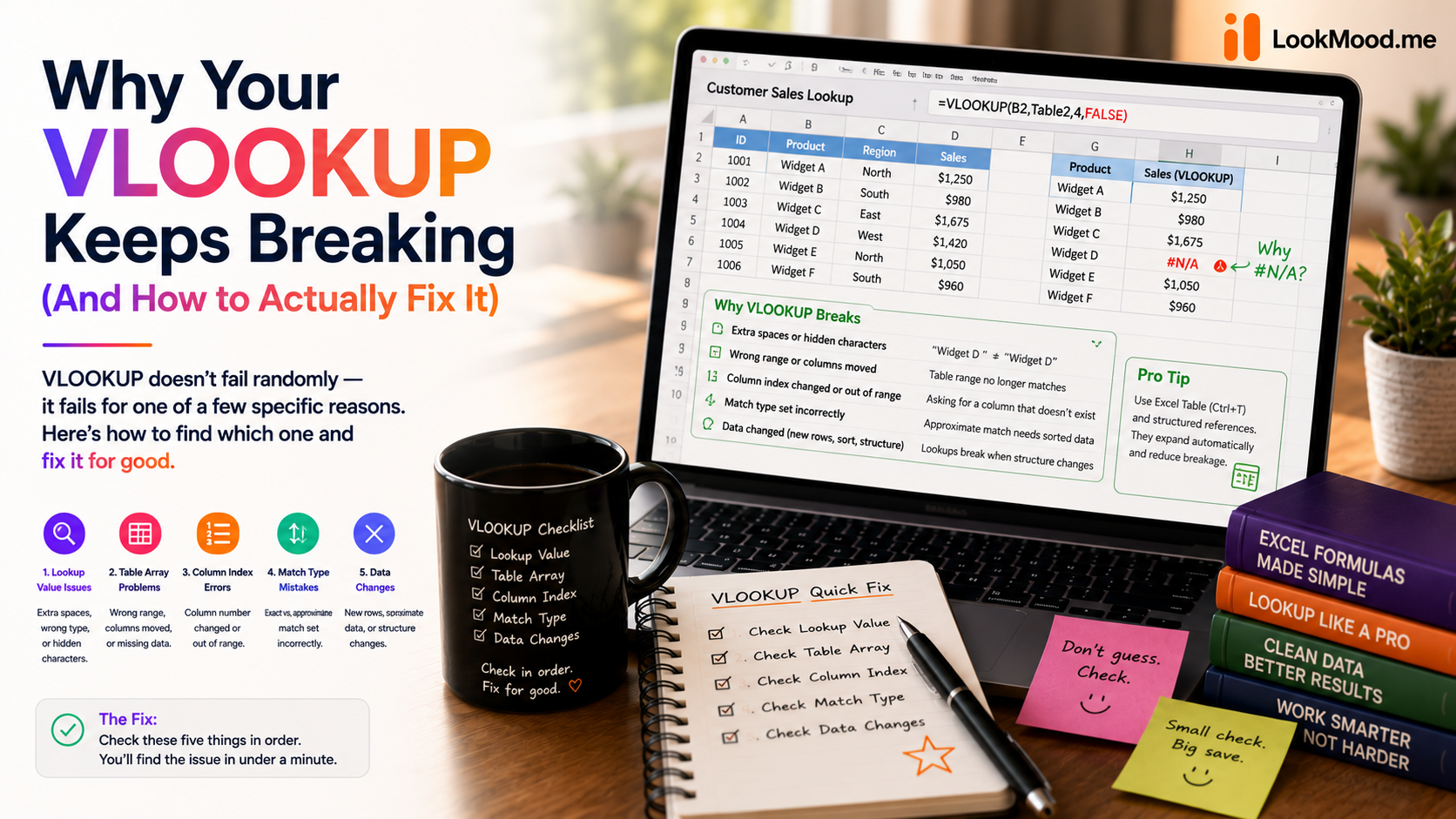
You build a VLOOKUP, it works on three rows, and then row four returns #N/A for no reason you can see. You retype it. Same result. Eventually you give up and just look the value up manually — which defeats the entire point of writing a formula.
VLOOKUP doesn't actually fail randomly. It fails for one of a small number of specific, predictable reasons, and once you know what to check, most breaks take thirty seconds to find instead of thirty minutes.
The five things that actually break a VLOOKUP
- The lookup column isn't the first column in the range. VLOOKUP only searches the leftmost column of whatever range you give it. If the value you're searching for is in column C but your range starts at column A, it silently searches the wrong column and returns nothing useful.
- A trailing space or invisible character. "Smith" and "Smith " (with a trailing space) look identical and are not the same value to VLOOKUP. This is the single most common cause of a lookup that should work and doesn't — the data came from a CSV export or a copy-paste and picked up whitespace you can't see.
- Mismatched data types. A value stored as text ("1002") will not match the same value stored as a number (1002), even though they look identical in the cell.
- The range isn't locked with $, so it shifted when you copied the formula down. Without absolute references, dragging a VLOOKUP down a column quietly moves the lookup range along with it, so row 50 is searching a completely different table than row 2.
- The exact-match argument was left off or set wrong. VLOOKUP's fourth argument controls whether it wants an exact match or an approximate one. Leaving it out, or setting it to TRUE by habit, makes the formula return the nearest match instead of the real one — which looks like a correct answer until you check it closely.
Every VLOOKUP failure you've ever hit is almost certainly one of these five. The discipline that actually works is checking them in order rather than rebuilding the whole formula from nothing.
Why XLOOKUP fixes some of this — but not all of it
If you have access to XLOOKUP (current Excel and Google Sheets both support it), it removes two of the five failure modes outright: it doesn't care whether your lookup column is leftmost, and its default is exact match, so you don't have to remember the fourth argument. It's a genuinely better function for new work.
But it doesn't fix trailing whitespace, mismatched data types, or an unlocked range — those are data problems and formula-construction problems, not lookup-function problems, and they'll break XLOOKUP exactly the same way they break VLOOKUP.
The faster way to find which one it is
Rather than working down the checklist by eye, describe the problem to LookMood AI's Excel Formula Generator — what you're trying to look up, what your columns contain, and what's actually happening when it breaks. It builds the formula against your specific structure, and just as usefully, it tells you the one or two things most likely to break that particular version of it, instead of a generic five-item list.
If you already have a formula that isn't working, paste it in and describe the wrong result — it'll usually spot which of the five it is faster than you can scroll back through your data checking for stray spaces.
The habit worth building
The pattern above isn't specific to VLOOKUP — SUMIF, COUNTIF, and INDEX/MATCH all break for the same small set of reasons: a data-type mismatch, an unlocked range, an off-by-one in the column count. Once you've debugged one lookup formula properly instead of guessing, the next one goes faster, the same way debugging code by narrowing down the actual root cause gets faster the more times you've done it instead of pattern-matching on what looked right last time.
Try it on a formula that's actually giving you trouble: the Excel Formula Generator is free, no signup needed.